![ARP logo.png]](https://support.arproactive.com/hs-fs/hubfs/ARP%20logo.png?height=40&name=ARP%20logo.png)
You can automatically email a saved filter view of AR Aging to yourself or other users on a recurring schedule, or as a one-time send.
The email includes a link to the Excel report of the AR Aging filter view.
1. Create an AR Aging email subscription
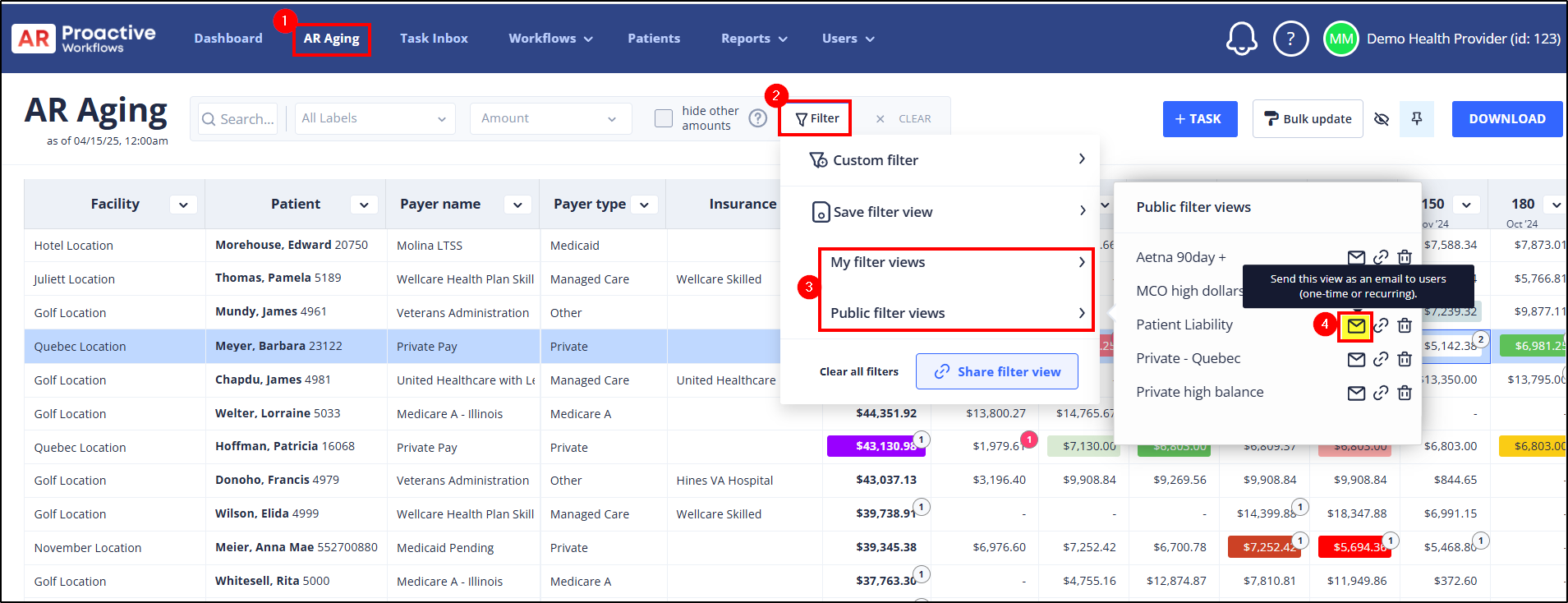
- Open the AR Aging.
- Click Filter.
- Select My filter views or Public filter views, depending on where your saved view is stored.
- Find the saved filter view you want to automate. If there are no saved filters, here's How to Save a Filter View on the AR Aging.
- Click the envelope icon next to that filter view.
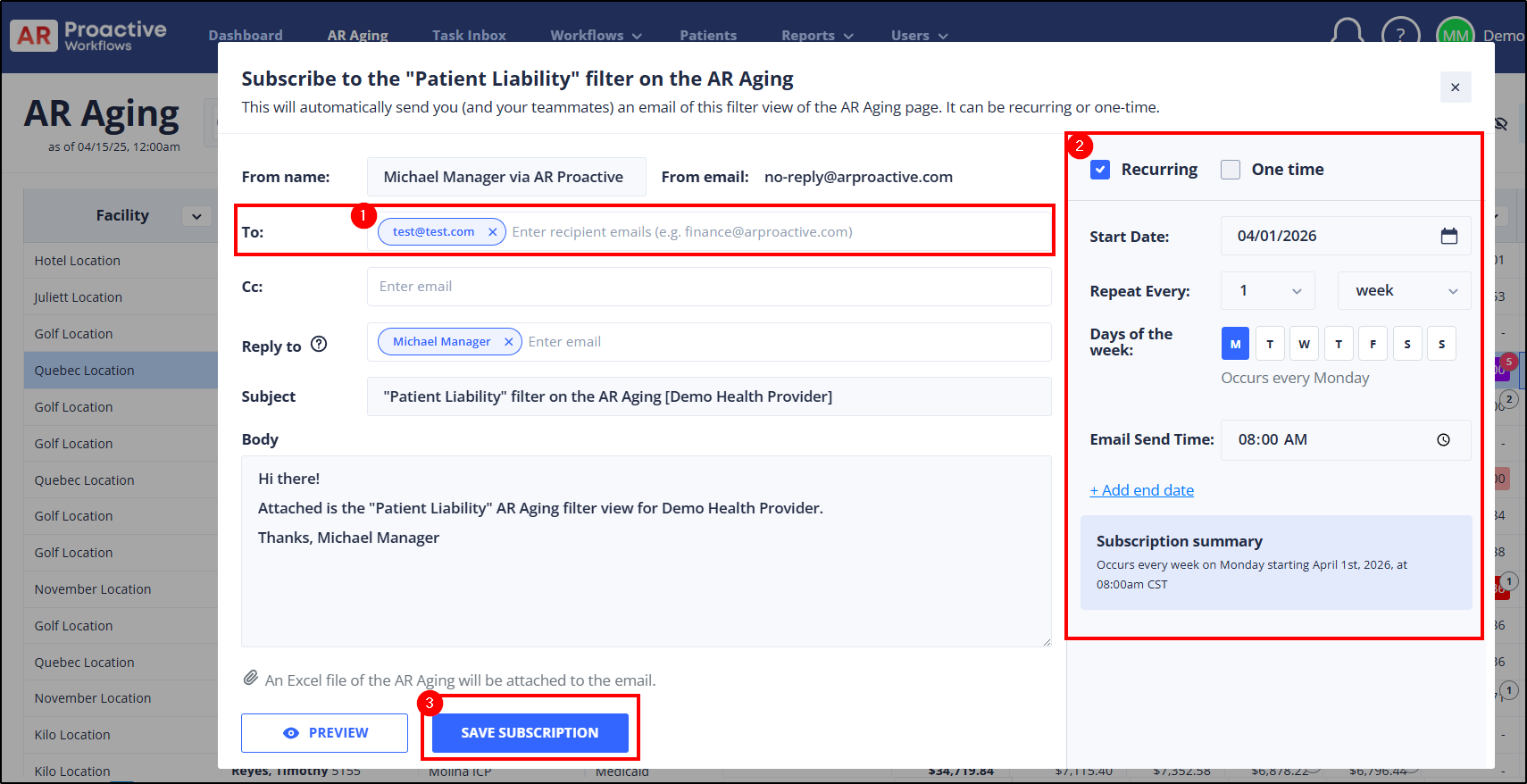
- Complete the subscription details
- In the subscription window, fill in the email settings, like To: and From: address
- Select Recurring or One-time
- Click Preview to see what recipients will receive
- Click Save Subscription
2. Edit or delete an existing subscription
To edit or delete an existing subscription:
- Go back to AR Aging.
- Click Filter.
- Open My filter views or Public filter views.
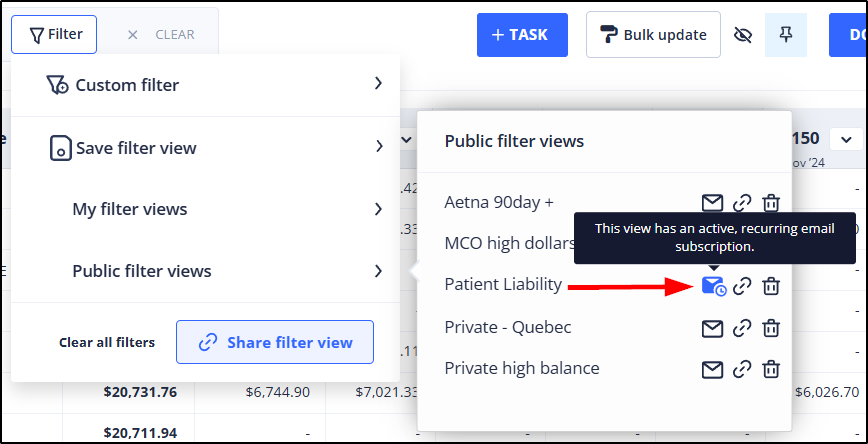
- Locate the filter view. If a filter view already has an active recurring email subscription, the envelope icon will indicate that a subscription is active.
-
Click the envelope icon again to open the subscription and make changes
- To delete the subscription, click Delete Subscription.