![ARP logo.png]](https://support.arproactive.com/hs-fs/hubfs/ARP%20logo.png?height=40&name=ARP%20logo.png)
How to Connect CentralReach (CR) to AR Proactive

- Create an employee user login to CentralReach for AR Proactive using:
- username: rich+[your company name]@arproactive.com e.g. rich+acmehealth@arproactive.com
Do not use a shared username since CR only allows one simultaneous login per username - name: AR Proactive
- tel. number: 773.669.7989
- username: rich+[your company name]@arproactive.com e.g. rich+acmehealth@arproactive.com
- With following permissions:
- Insights > Standard Reports > Financial > Receivables report (needed for populating the AR Aging and Balance workflows)
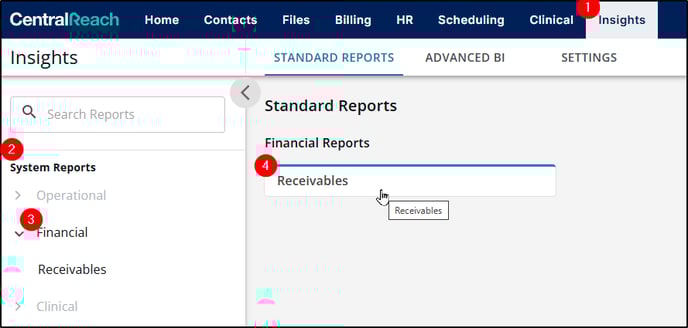
- Contacts > Everyone (needed for Staff onboarding workflows) (this is optional)
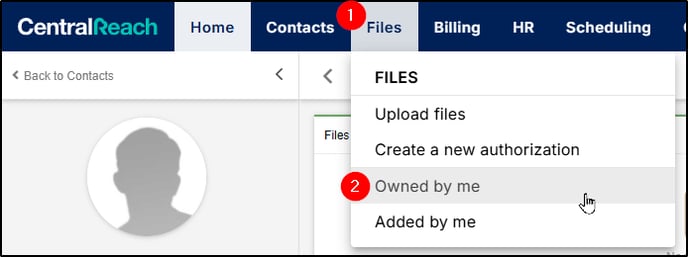
- Files > Owned by me (needed for downloading reports we run) - we only need access to our User's reports, no other User's reports.
- You can limit / turn off the user's ability to enter data or make any changes in your CentralReach instance.
- Insights > Standard Reports > Financial > Receivables report (needed for populating the AR Aging and Balance workflows)
- Connect our username with all Contacts: both new and existing, both active and inactive
- This is so that the Receivables report contains all balances for all clients.
- For new contacts
- Contacts > Utilities & Tools > Contact Forms > select your form(s) > Automation and Files > Connect To all contacts with View permissions
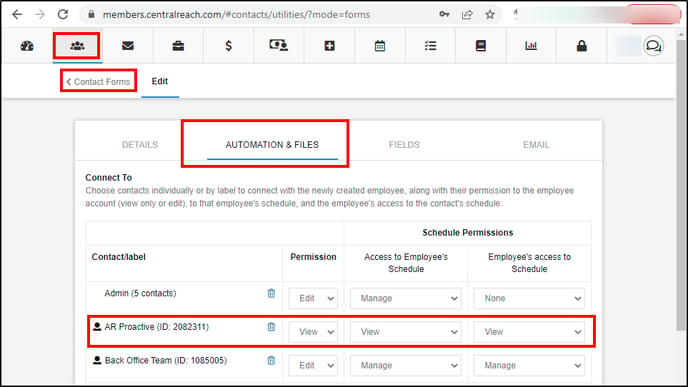
- Contacts > Utilities & Tools > Contact Forms > select your form(s) > Automation and Files > Connect To all contacts with View permissions
- For existing contacts
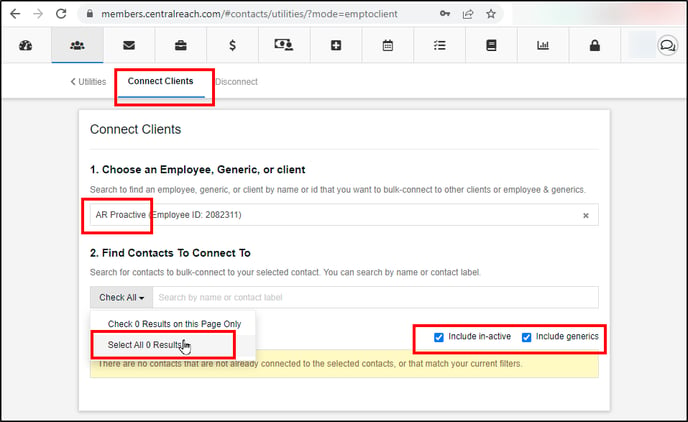
- Contacts > Utilities & Tools > Connect Clients
- Choose employee: select the username you just created for AR Proactive
- Check Include in-active and Include generics
- Check all > select all XXX results
- Contacts > Utilities & Tools > Connect Employees/Generics
- Choose employee: select the username you just created for AR Proactive
- Check Include in-active and Include generics
- Check all > select all XXX results
- Send the username and password to our team to connect
How ARP uses the CentralReach "Receivables" report
- We run the report based on Date of Service (not first billed)
- For Insurance balances (i.e. non-Private): we use only the outstanding amount (meaning, we ignore any credits)
- The reason is that each claim has to be worked independently from each other, regardless if this claim has an outstanding balance, and another claim has a credit balance.
- Also, insurances usually recoup (take back) overpayments (credits). They will not simply apply a credit to another outstanding balance.
- For Private balances (i.e. non-Insurance) balances: we use the net amount (meaning, outstanding minus credits)
- The reason is that the responsible party only needs to know the net amount they owe, because the provider usually applies overpayments (credits) to other outstanding balances.
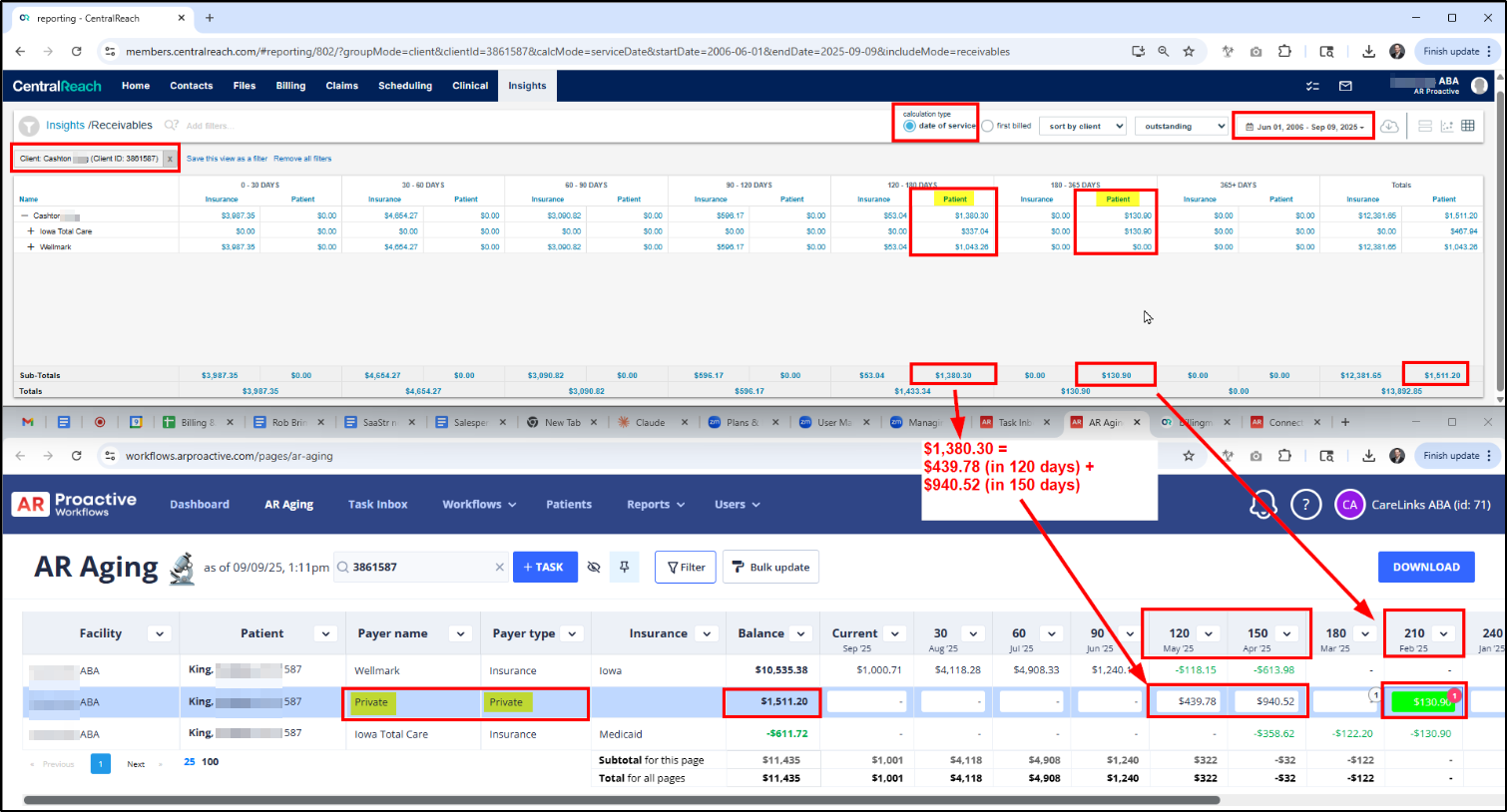
- To confirm the accuracy of Private Balances in AR Proactive, open CentralReach > Insights > Receivables. Search for the particular patient, for all Dates of Service (i.e. from the beginning of history). See snip below. (To see a bigger image: right click on the image > Open in new tab.)