![ARP logo.png]](https://support.arproactive.com/hs-fs/hubfs/ARP%20logo.png?height=40&name=ARP%20logo.png)
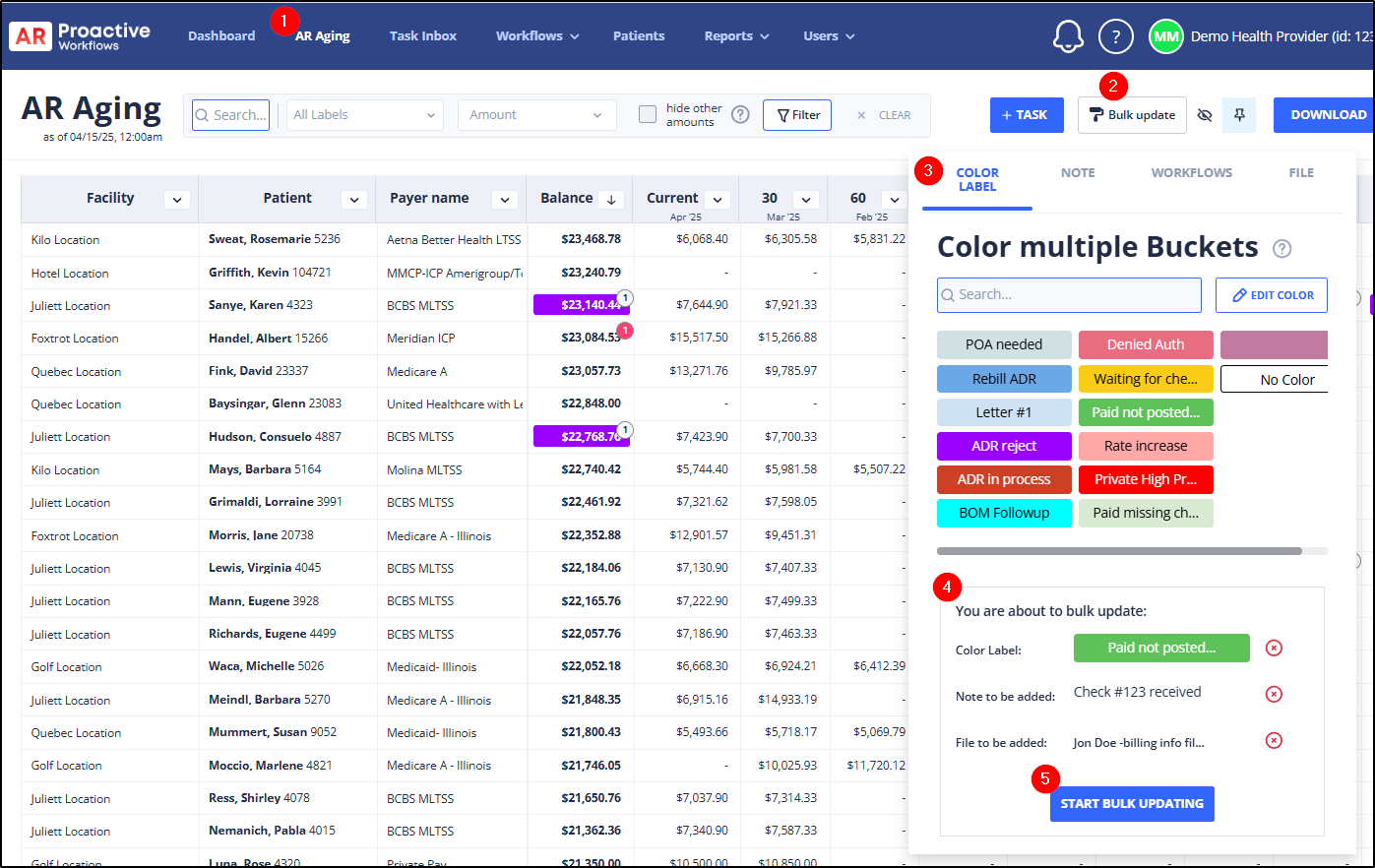
Instead of clicking repeatedly to add a Label (or Note, File or Workflow) to each Balance or Bucket, you can add them in Bulk.
This is similar to the format "paintbrush" in Excel.
- Open the AR Aging.
- Click Bulk Update (top right)
- Select the tabs to bulk update any of:
- Labels
- Notes
- Workflows
- Files
- Click Start Bulk Updating. Your cursor will change to paintbrush
 , showing you're in bulk update mode.
 - Click any Bucket amount or Balance amount to apply the Label, Note, Workflow and/or File.
- To stop bulk updating:
- Press Esc on your keyboard (top left)
... or ... - Click Bulk Update > Stop Bulk Updating
- Press Esc on your keyboard (top left)